Live video and signal status
See the live view, connection signal and streaming state on both the phone and OBS. If the link weakens, you know immediately.
Phone-to-computer webcam · Free for a limited time
Skip the ordinary webcam. CelerCam sends your phone's better camera straight into OBS — dependable over USB, flexible over Wi‑Fi.
Windows · macOS · USB or WiFi
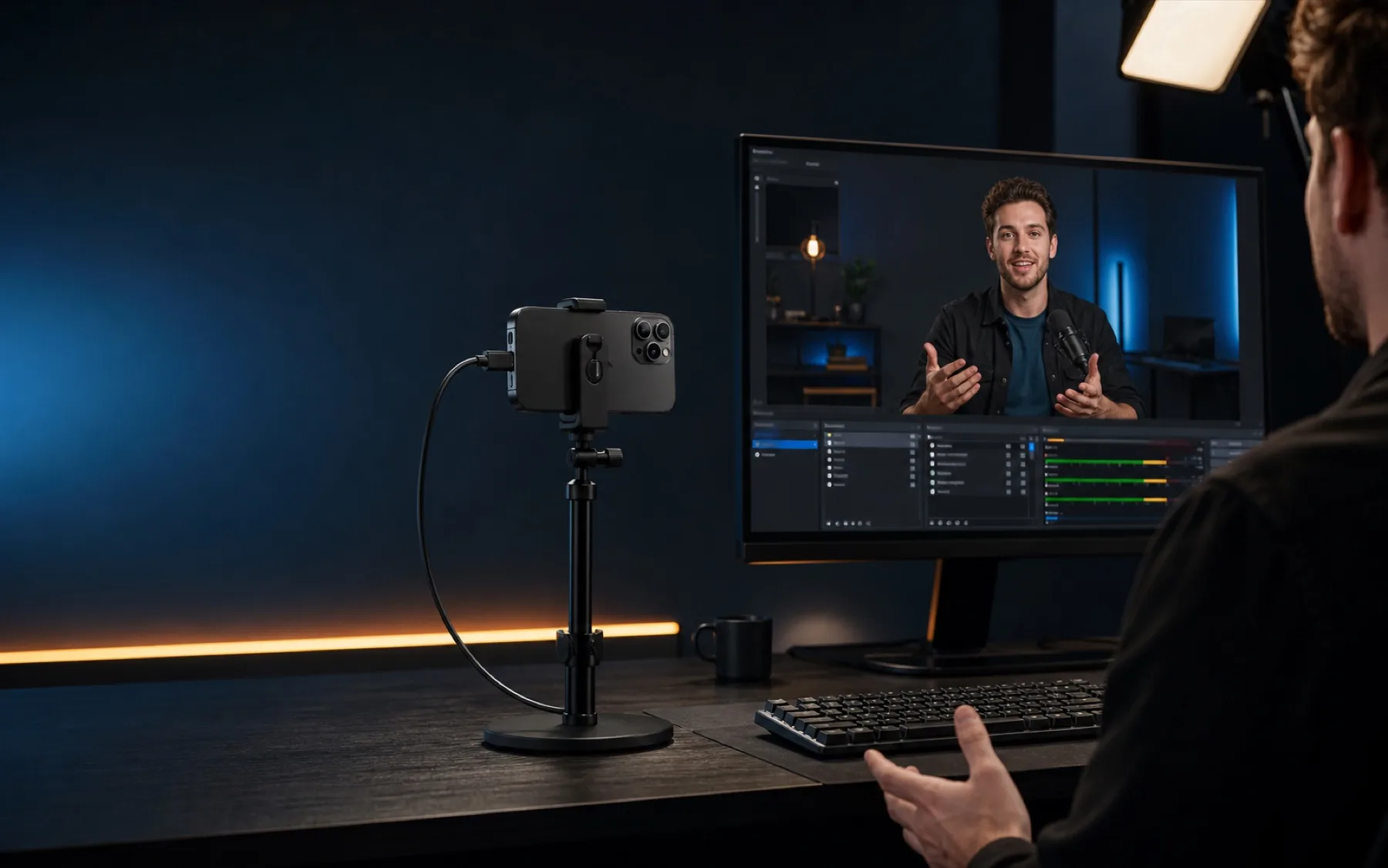
Built for your video workflow
Core features
Monitor on your phone, multitask on Android and control camera zoom in one workflow. Next, CelerCam will bring gimbal control into OBS and the desktop experience.
See the live view, connection signal and streaming state on both the phone and OBS. If the link weakens, you know immediately.
Shrink CelerCam into a floating preview while using another app. Keep an eye on the picture and connection as you multitask.
Adjust phone zoom and toggle the fill light directly in OBS. Every change syncs back to the phone, so both sides always show the same state.
Planned controls in OBS or the desktop panel will cover pan, tilt and re-center, keeping camera movement inside the production workspace.
Made for OBS
CelerCam enters your scene as a native OBS source instead of being routed through a browser capture. Video, audio and camera controls stay in one production workflow.
From streams and podcasts to tutorials and last-minute calls, the camera already in your pocket becomes a sharper, more flexible source.
Add CelerCam under Sources, then crop, resize, filter and place it just like any other camera.
Use USB when stability matters, or switch to the same-network Wi‑Fi mode when the camera needs to move.
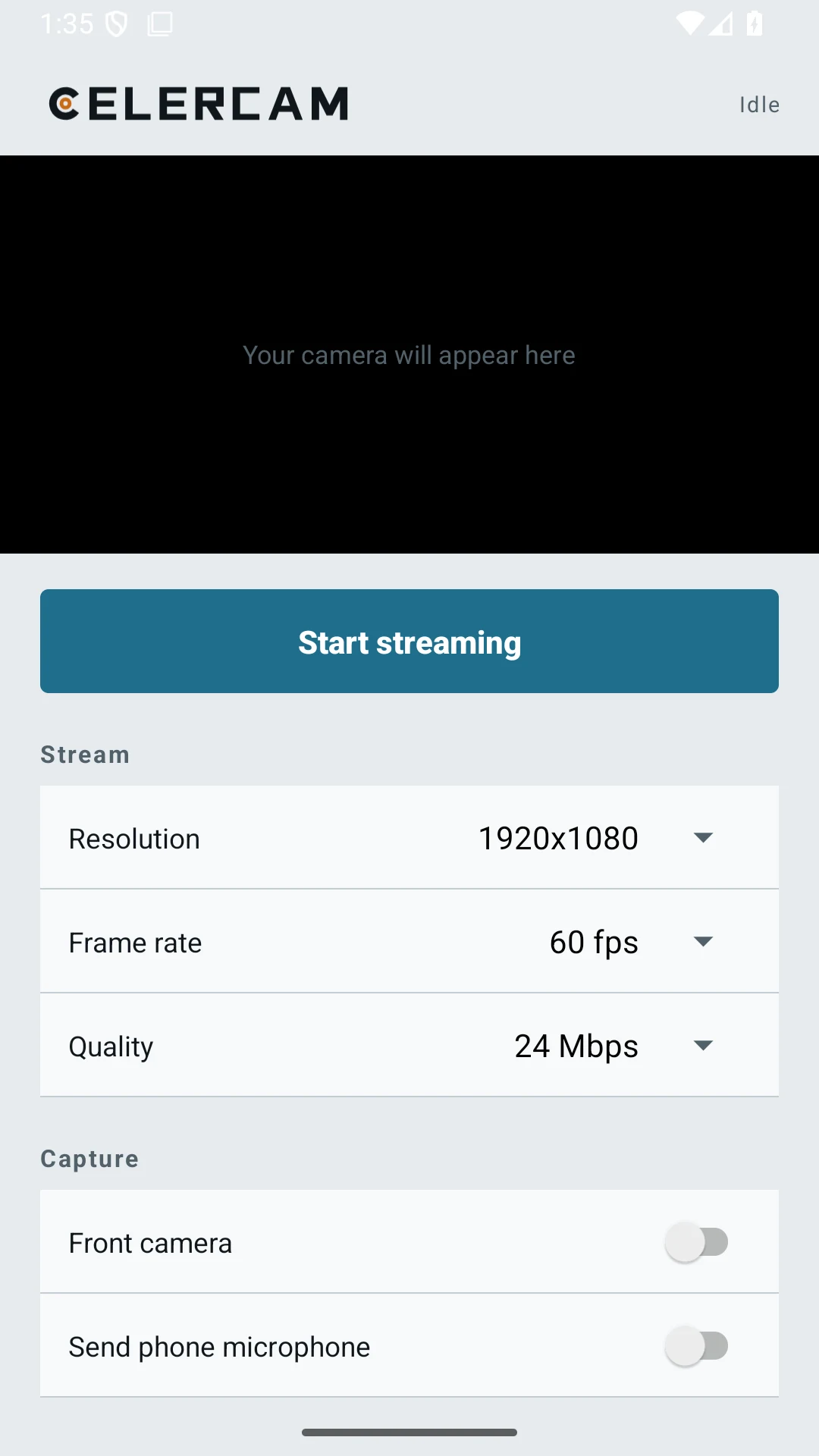
Control zoom, fill light, exposure and white balance in OBS. Settings sync to the phone while live video and signal status report back.
Three common failures
Three complaints come up again and again with tools like this: the picture lags, it drops out, and a weak network turns it into a slideshow. We handled all three.
Many tools buffer frames before sending them, in the name of stability. The cost is that you always see the past. CelerCam does the opposite — the newest frame goes straight through, late ones are dropped.
When the link can't keep up, quality drops a little to protect smoothness, then climbs back once it recovers. You don't have to guess at settings.
A loose cable or a WiFi hiccup won't end your stream. The picture comes back on its own.
Measured
These numbers come from real runs. The method and raw samples are public.
Setup
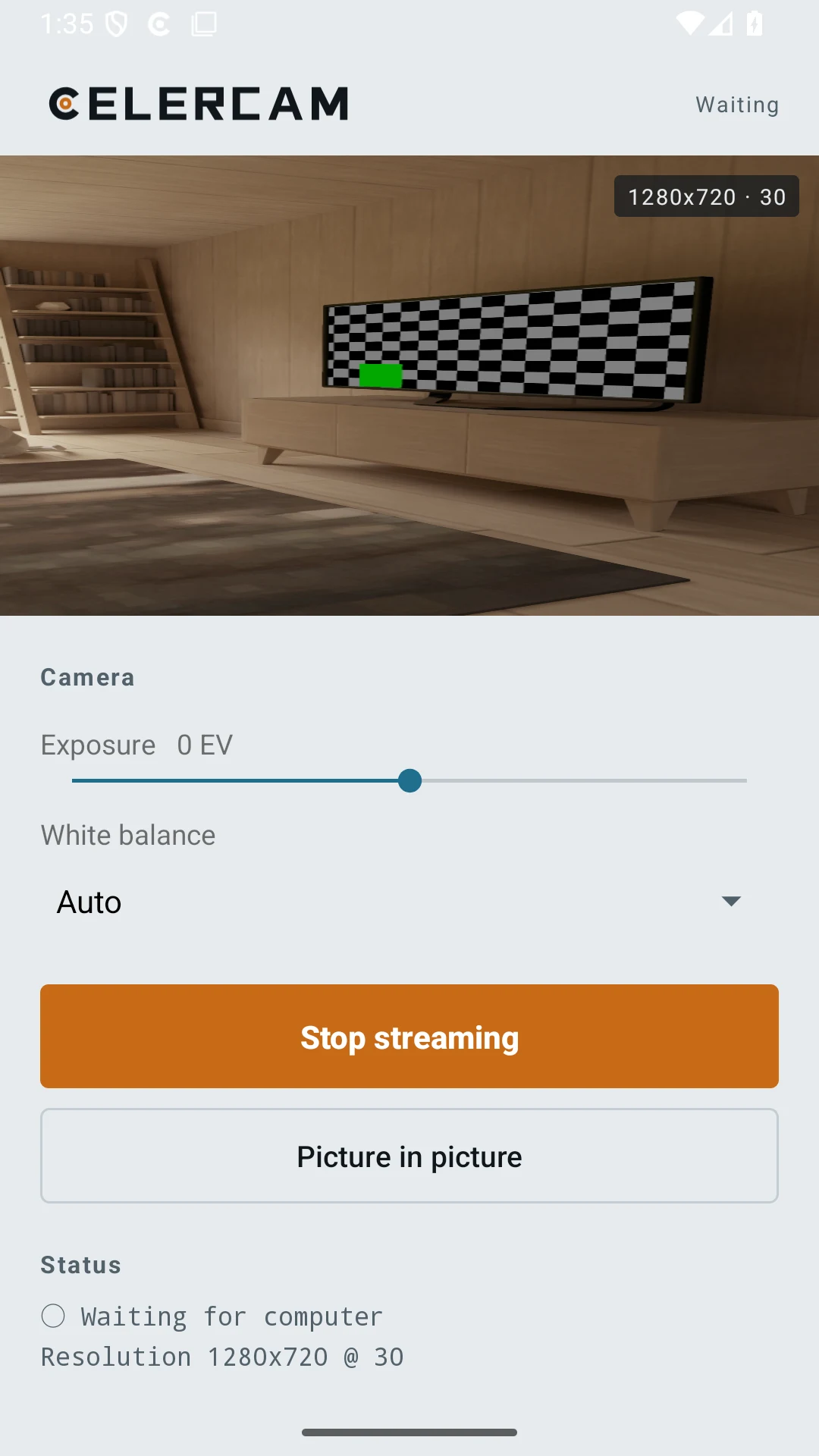
Follow the real screens. Phone to OBS in three steps.
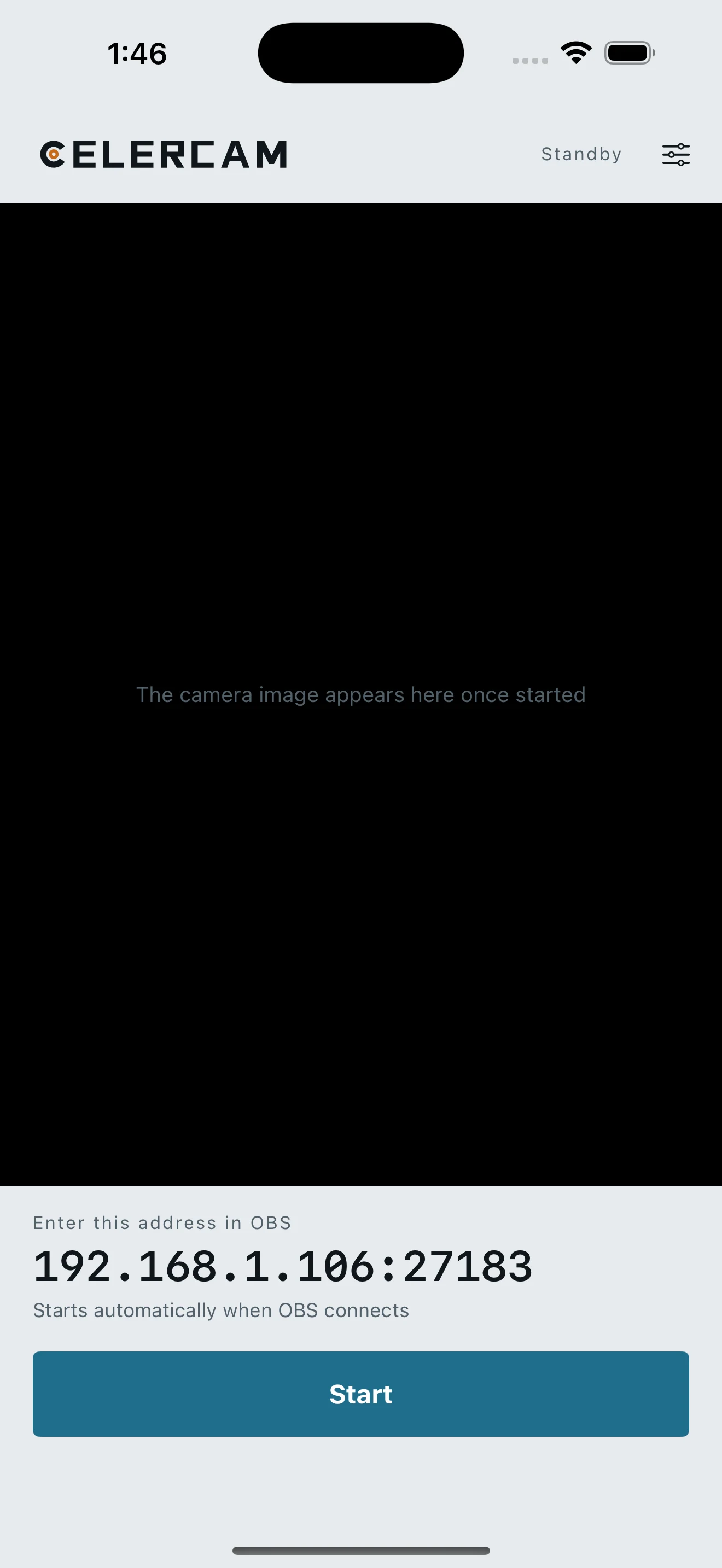
Install the mobile app and the OBS plugin, then restart OBS.
Connect USB or use the same Wi‑Fi, then tap Start streaming.
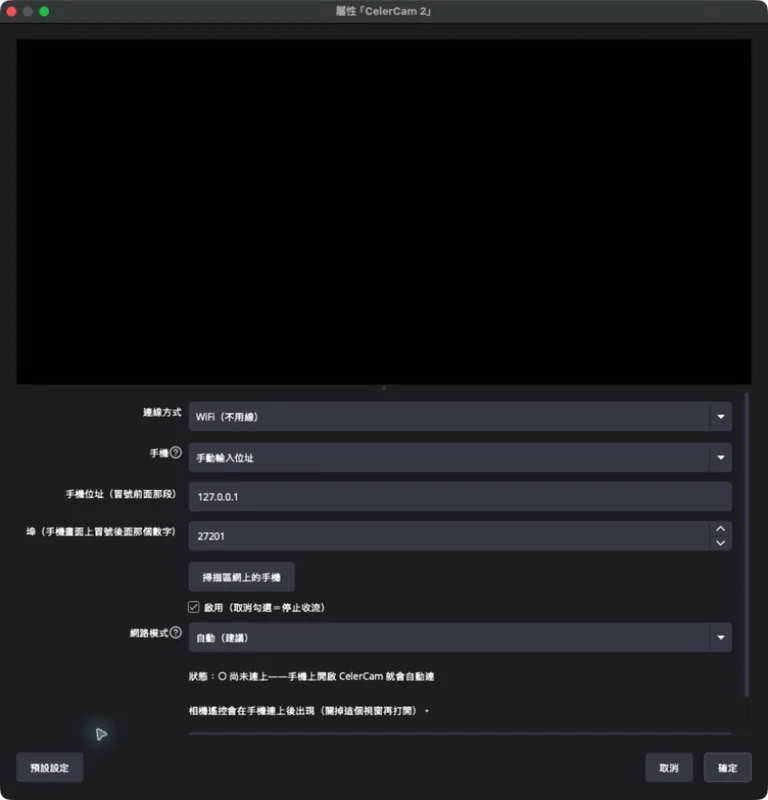
Under Sources, press +, choose CelerCam, then select your phone. Done.
One phone, more angles
The same low-latency link works from a creator studio to everyday remote work.
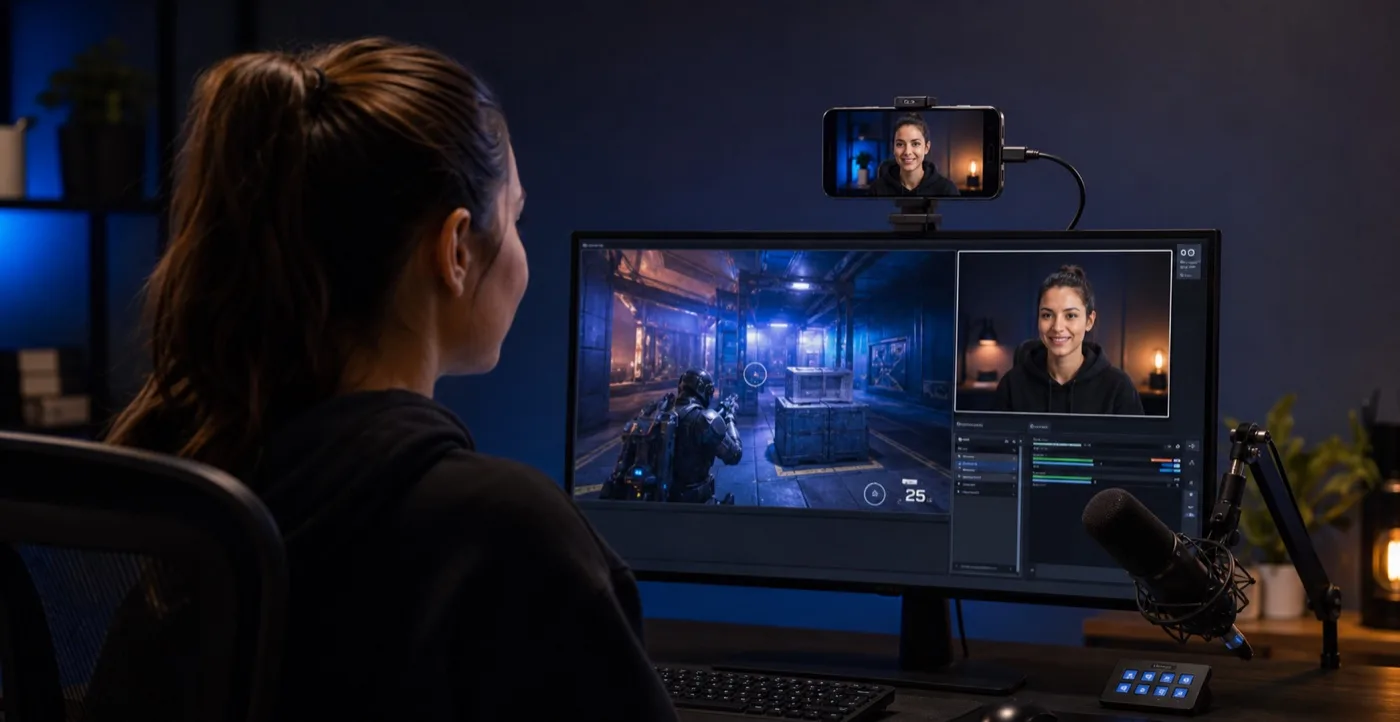 01 · STREAM
Add it to an OBS scene as a face cam, close-up or second angle.
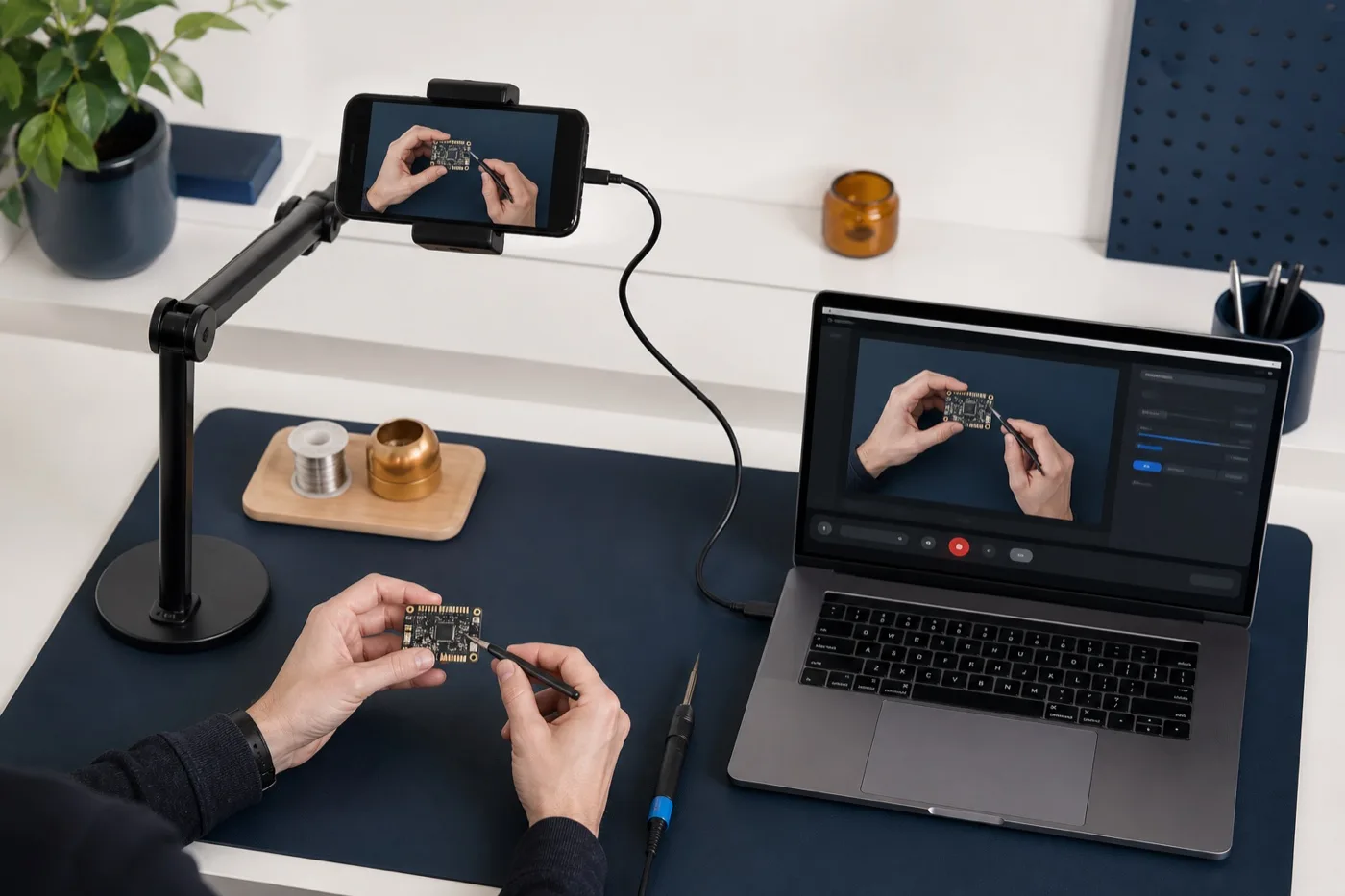 02 · RECORD
Use the phone's main camera for clearer lessons, demonstrations and overhead shots.
 03 · MEET
Send the finished scene to Zoom, Meet or Teams with OBS Virtual Camera.
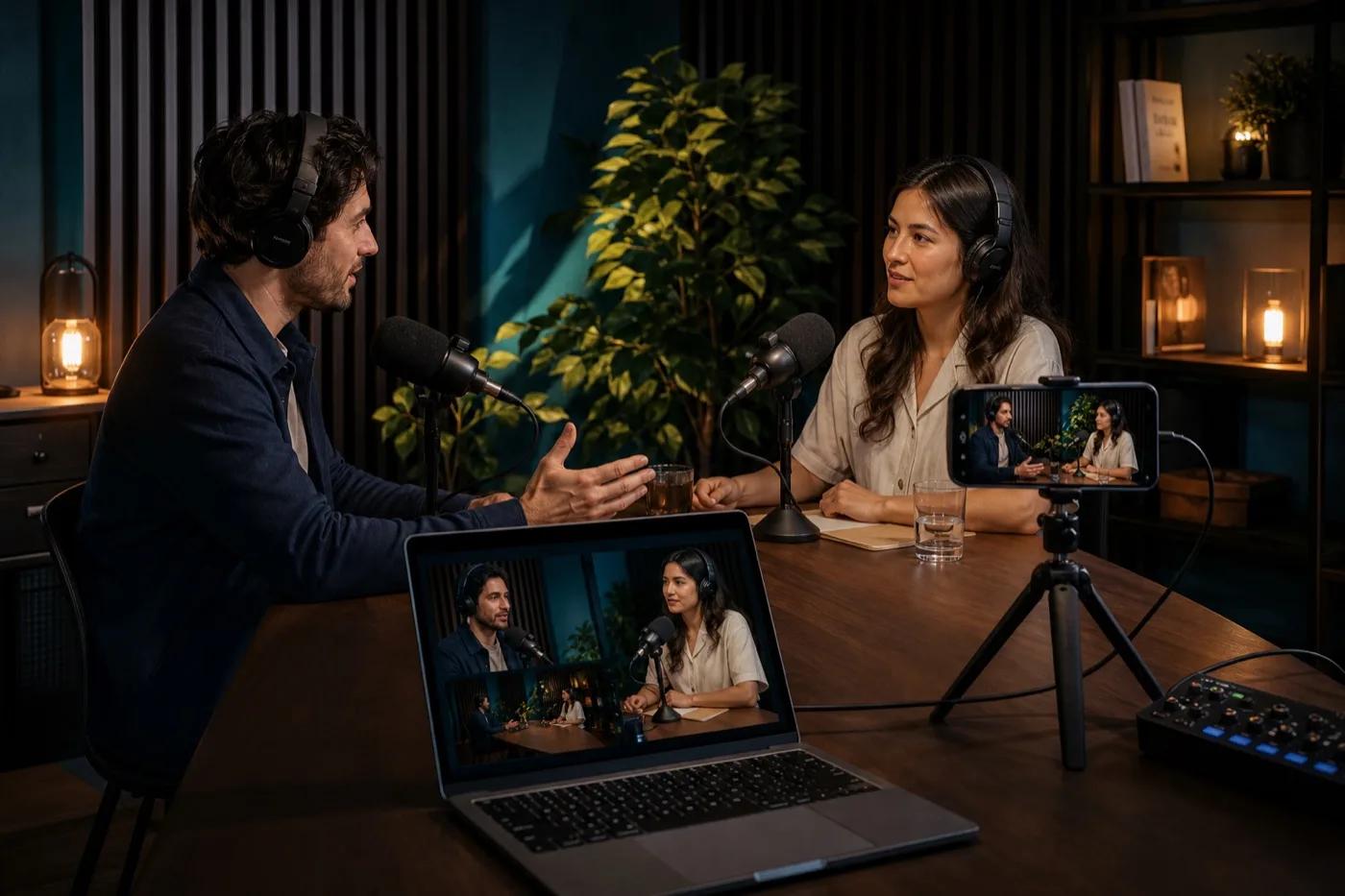 04 · PODCAST
Frame a host, guest or side angle with a phone and build a more complete conversation without another camera purchase.
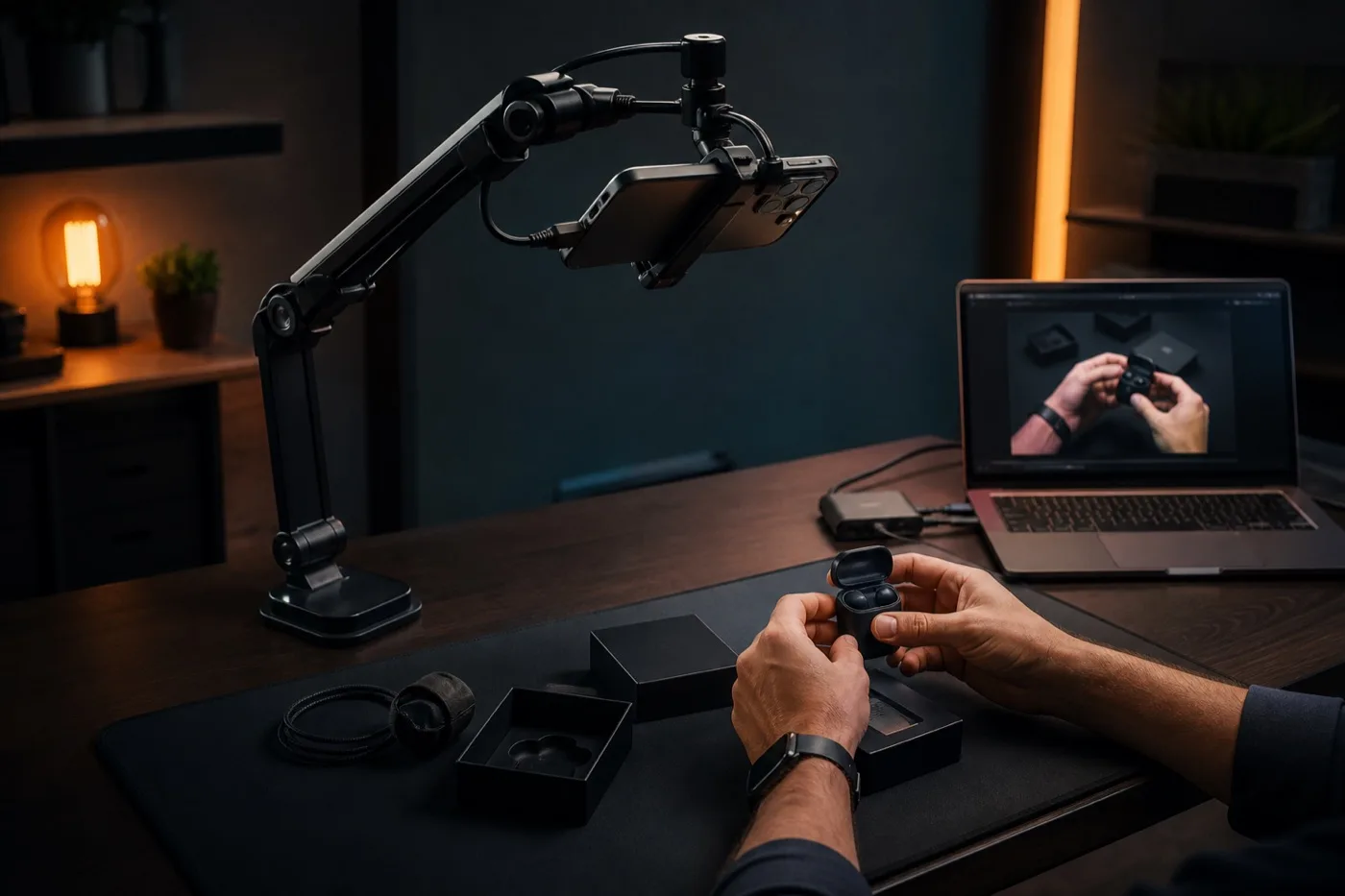 05 · PRODUCT
Shoot unboxings, crafts, cooking and hands-on tutorials from above, then crop and enlarge details directly in OBS.
 06 · MULTICAM
Add a close-up or side angle for venues, performances and community events, using a phone as a flexible second camera.
Remote control
Control zoom, fill light, exposure and white balance from OBS, with every change reflected on the phone. Live video, connection signal and streaming state continuously report back to the computer. Available controls depend on the camera. Resolution and whether to take the phone’s audio are also chosen right in OBS.
Simple pricing
Every feature is free for a limited time. Next comes a limited NT$999 lifetime offer; after that promotion ends, the plan becomes NT$99 per month. Payment stays inside the mobile app.
Put CelerCam into real streams and real work. Every feature currently available is included.
Available for a limited time after the free launch period. Pay once and keep using CelerCam without a monthly renewal.
The lifetime offer has not started. Final local price and dates will appear in the app.
The ongoing plan after the limited lifetime offer, for people who want continued access to every feature.
FAQ
The connection, OBS workflow and future payment model — clearly explained.
Install the CelerCam app on your phone and the CelerCam OBS plugin on your computer. Connect by USB or put both devices on the same Wi‑Fi, then add CelerCam as a source in OBS.
Yes. Add CelerCam to OBS, start OBS Virtual Camera, then select OBS Virtual Camera in your meeting app.
CelerCam is free for a limited time. Next comes a limited NT$999 lifetime purchase, followed by a NT$99 monthly plan. App Store or Google Play will handle payment, restoration and subscription management.
CelerCam is a native OBS source, so you don't install a virtual camera and have OBS pick it up — one less conversion layer, one less source of latency. Zoom, exposure and the torch are controlled from the OBS panel, so the phone can stay on the tripod. Both USB and Wi-Fi are supported, and the bitrate adapts when the network degrades instead of freezing.
USB is the most stable and lowest latency, and it doesn't consume wireless bandwidth — best for long streams. Wi-Fi lets you place the phone anywhere, which suits overhead shots and multi-camera setups; prefer 5GHz and keep the phone near the access point. You can switch between them in OBS at any time.
Yes. Once CelerCam is in OBS it behaves like any other source, so anywhere OBS can send video works — Twitch, YouTube Live, Facebook, Discord screen share. With OBS Virtual Camera you can also feed apps that only accept a webcam, such as Zoom, Google Meet and Microsoft Teams.
Over USB it is typically within a frame or two — not visible to the eye. Over Wi-Fi it depends on the environment, and stays low on a clean network. CelerCam runs an adaptive jitter buffer, so on an unstable link it trades a small amount of delay for continuous video and audio instead of stuttering.
No. The phone connects directly to your computer; video and audio travel only over your own local network or the USB cable. Nothing passes through our servers, nothing is uploaded, and the app requires no account.
Yes, and it's the most common use. Desktops, older laptops and custom builds usually have no camera, and a decent webcam costs real money — while the phone in your pocket generally has a better sensor than a webcam at the same price. With CelerCam your phone becomes a 1080p camera over USB or Wi-Fi, on both Windows and macOS.
Yes, and you can be live in minutes. Install the OBS plugin on the computer, open the app on the phone, connect, and you have a picture. No new hardware to buy, no shipping to wait for — useful when you discover a dead webcam right before a meeting.
Usually much better. Mid-range and newer phones have larger sensors and better lenses than USB webcams at the same price, and the gap is widest in low light. CelerCam streams 1080p and lets you adjust zoom and exposure from OBS, which most webcams don't offer at all.
It's a great fit. An old phone sitting in a drawer makes an ideal fixed camera — it doesn't need to take calls or run anything else, it just needs to run CelerCam. Android 8.0+ and iOS 15+ are supported; keep it on USB power for long sessions.
Yes. Add several CelerCam sources in OBS and point each at a different phone. A main angle plus an overhead or side camera is a common combination, and each source has its own quality and network settings.
Yes, this is a popular use. Mount the phone on an arm pointing down at paper, sheet music or a hands-on demo and you have a document camera. Combine it in OBS with your screen or slides for remote classes and online tutoring.
Get it
Free for a limited time. This is the first release.
OBS Studio 30 / 31 / 32 (tested up to the latest 32.2.2)
Run the installer — it puts the plugin where OBS actually looks. Prefer to do it by hand? The zip below has instructions. Plugin not showing up in OBS, or anything else wrong? Email [email protected] — we answer.
OBS Studio 30 / 31 / 32 (tested up to 32.2.2) · Apple silicon / Intel
Public test build (Apple silicon and Intel, macOS 13+): Developer ID signed, but NOT Apple-notarised. macOS may block opening it. Notarization is pending setup; do not disable system security protections.
iPhone · iOS 16 or later
In review for the App Store. This will link straight to it once it lands.
Awaiting store reviewUse the same version on both ends. A mismatch is refused outright, with the reason stated — it won't half-work, so you don't discover the problem mid-stream.